Interrogating Violations - English documentation - The Altium Wiki:
"There are essentially three methods of interrogating design violations - from the Messages panel, from the PCB panel and directly within the design workspace."
'via Blog this'
Thursday, August 29, 2013

Wednesday, August 28, 2013
Update PcbDoc From PcbLib
To update a PCB design from a PcbLib.
Open the *.PcbDoc and the *.PcbLib.
Select a Component in the PCB Library Pane, then Right Click to Update PCB with the selected component.
Or Update the entire PCB with all of the footprints with the same name parts by selecting 'Update PCB with All'.
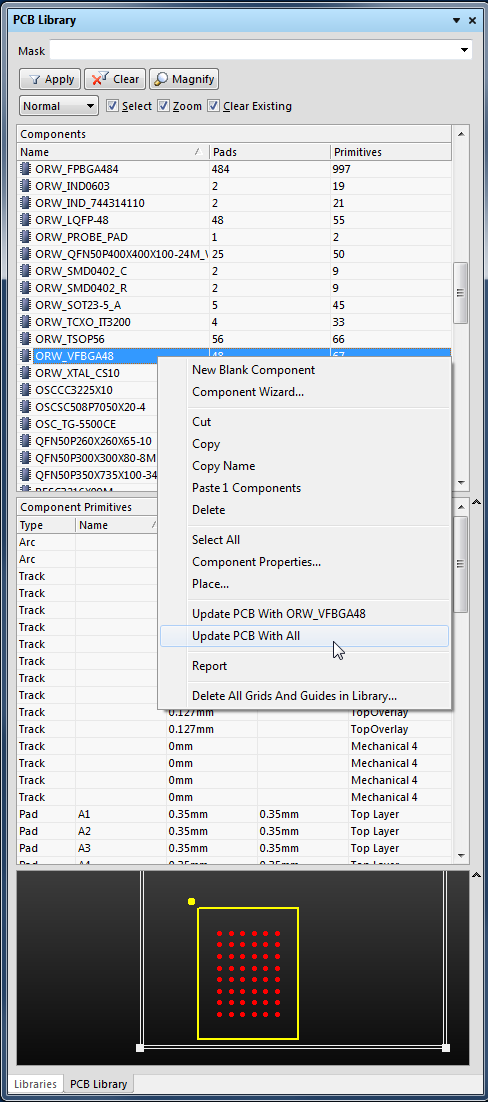
Typical scenario, you need to update a PCB design and you may not have access to the libraries from which the parts originated.
First create PcbLib from the PcbDoc: Menu > Design > Make PCB Library
Modify the footprints as need then update the PcbDoc from the PcbLib following the steps described above.
Note that the PCB will be immediately updated without going through an ECO and a Report is not generated.
Open the *.PcbDoc and the *.PcbLib.
Select a Component in the PCB Library Pane, then Right Click to Update PCB with the selected component.
Or Update the entire PCB with all of the footprints with the same name parts by selecting 'Update PCB with All'.
Typical scenario, you need to update a PCB design and you may not have access to the libraries from which the parts originated.
First create PcbLib from the PcbDoc: Menu > Design > Make PCB Library
Modify the footprints as need then update the PcbDoc from the PcbLib following the steps described above.
Note that the PCB will be immediately updated without going through an ECO and a Report is not generated.
Wednesday, August 21, 2013
Routing - Auto Completion
Interactively Routing a Net - English documentation - The Altium Wiki:
"The Interactive Router is able to attempt automatic completion (Auto-Complete) of connections to the target pad, hold CTRL and Left Click to instruct the Interactive Router to attempt to complete the current connection.
This can make routing much faster than placing individual track segments, however, there are some limitations to Auto-Complete feature, as follows:
Start point and target pad are on the same layer The route can be completed in accordance with design rules (provided that routing conflicts are not being ignored).
Auto-Complete is available at any time, and you can even CTRL + Click directly on a pad or connection line to route it, there is no need to select it first.
You can use Auto-Complete on connections that are partially routed as well. To do this, CTRL + Click on the end of the last track segment or the remaining connection line to complete it to the target.
If a connection cannot be auto-completed the tool will return to the last used interactive routing mode."
'via Blog this'
"The Interactive Router is able to attempt automatic completion (Auto-Complete) of connections to the target pad, hold CTRL and Left Click to instruct the Interactive Router to attempt to complete the current connection.
This can make routing much faster than placing individual track segments, however, there are some limitations to Auto-Complete feature, as follows:
Start point and target pad are on the same layer The route can be completed in accordance with design rules (provided that routing conflicts are not being ignored).
Auto-Complete is available at any time, and you can even CTRL + Click directly on a pad or connection line to route it, there is no need to select it first.
You can use Auto-Complete on connections that are partially routed as well. To do this, CTRL + Click on the end of the last track segment or the remaining connection line to complete it to the target.
If a connection cannot be auto-completed the tool will return to the last used interactive routing mode."
'via Blog this'
Saturday, August 17, 2013
From-To Editor Features
Using the From -To Editor in the PCB panel will create dashed lines in your design.
The dashed lines look similar to the rats nest may cause you some concern.

To remove the dashed lines you will need to remove the From-To Pair in the PCB Panel.

Note: When the 'From To Editor' is selected the Rats Nest is not displayed.
The dashed lines look similar to the rats nest may cause you some concern.

To remove the dashed lines you will need to remove the From-To Pair in the PCB Panel.

Note: When the 'From To Editor' is selected the Rats Nest is not displayed.
PCBLib - Split Files Bloated
Embedded fonts create bloated files, single part PCBLib files that would typically only be ~65K will bloat to 488K in size.
True Type fonts may be embedded into each PCBLib file created when you run the Library Splitter Wizard.
The Embed True Type Fonts Option can be toggled in your Preferences.
DXP > Preferences > PCB Editor > True Type Fonts
Click to view

(Shown above Embed True Type Fonts Option is Enabled)
Steps to investigate and reproduce bloated file behavior:
Uncheck Embed True Type Fonts Option in your preferences.
Open a PcbDoc and Make PCB Library.
Design > Make PCB Library.

Note of the PcbLib File Size.
Check Embed True Type Fonts Option in your preferences.
Open a PcbDoc and Make PCB Library.
Design > Make PCB Library.
Note the PcbLib File Size is ~ 423K larger, due to the single instance of the embedded True Type Arial Font.
Split PCBLib
When a PCBLib is split with the Embed True Type Fonts Option Enabled, the True Type fonts are embedded into each of the split PCBLib files, creating bloated files.
To split a PCBLib:
Tools > Library Splitter Wizard.
Credits and References:
Ryan Rutledge uncovered this problem:
Reference Altium Live Bug 621: (Sign-In Required)
True Type fonts may be embedded into each PCBLib file created when you run the Library Splitter Wizard.
The Embed True Type Fonts Option can be toggled in your Preferences.
DXP > Preferences > PCB Editor > True Type Fonts

(Shown above Embed True Type Fonts Option is Enabled)
Steps to investigate and reproduce bloated file behavior:
Uncheck Embed True Type Fonts Option in your preferences.
Open a PcbDoc and Make PCB Library.
Design > Make PCB Library.

Note of the PcbLib File Size.
Check Embed True Type Fonts Option in your preferences.
Open a PcbDoc and Make PCB Library.
Design > Make PCB Library.
Note the PcbLib File Size is ~ 423K larger, due to the single instance of the embedded True Type Arial Font.
Split PCBLib
When a PCBLib is split with the Embed True Type Fonts Option Enabled, the True Type fonts are embedded into each of the split PCBLib files, creating bloated files.
To split a PCBLib:
Tools > Library Splitter Wizard.
Credits and References:
Ryan Rutledge uncovered this problem:
Reference Altium Live Bug 621: (Sign-In Required)
Subscribe to:
Posts (Atom)