You can add custom Toolbars to Altium.
To add a Script to a custom toolbar, open the Script, then . . .
Right click on the main menu bar > Select Customize
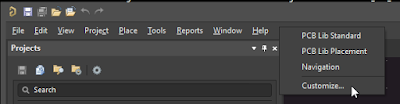
Select Toolbars > New > Rename
Then select Commands > [Scripts] > Drag the Script to the custom menu.
Rename the menu button or add an icon if desired.
To add a button to a Custom Toolbar use drag as shown below.
That's it !
When creating your own custom Toolbars you may want to find or create some button faces.
In AD17 Button Faces can be Found at:
C:\Program Files (x86)\Altium\AD17\System\Buttons
After upgrading from AD13 to AD14 my custom toolbar which I created in AD13 was missing.
To restore my custom toolbar in AD14, I copied the following three files from AD13 :
DXP.RAF
DXP.RCS
UserTools.TLT
AD13 Location:
"C:\Users\Your User Name \AppData\Roaming\Altium\AD {xxx . . .}"
AD14 Location:
"C:\Users\Your User Name \AppData\Roaming\Altium\Altium Designer {xxx . . .}"
Tip: Altium must be closed while you copy the files, because the files are over written when a session of Altium is closed.
Just to be safe create copies of the AD14 files before overwriting them.
Refer to Link: Altium Forum Search:
C:\Users\username\AppData\Roaming\AD {<GUID>}
Where GUID is a long Set of Hex characters.
Use File Search if needed to locate the files shown below on your computer.
Copy the following files and paste it to the same location on your new PC.
DXP.RAF
DXP.RCS
UserTools.TLT
Altium has to be closed, during this precedure, or else your copied files will be overwritten.
These files are overwritten when Altium is Closed.
If you are frequently updating your Toolbars, then Synctoy can be used to simplify this task.
'via Blog this'
Steps to create a custom Toolbar Command Button to Run a Script.
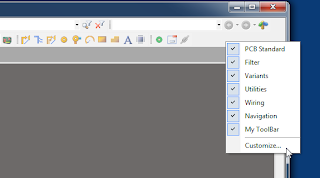
Right Click on and empty space in the menu bar and select Customize . . .
Select Toolbar Tab and Create a New Toolbar
Select the Commands Tab, then [Custom] then New
For Process Select: ScriptingSystem:RunScript
Enter the Parameters, Example:
ProjectName=C:\Altium_RJC\Altium_Central\Scripts\Via Soldermask Barrel Relief\Via Soldermask Barrel Relief.PrjScr|ProcName=Via Soldermask Barrel Relief.pas>Start
Enter a Caption and Description.
Select an existing Altium Command Button or Create your own Button.
AD14 Buttons are installed at:
"C:\Program Files (x86)\Altium\AD14\System\Buttons"
Drag and Drop The New Command Button to your Custom Toolbar
You can also easily add a Hot key (keyboard short cut) to any command button or menu by holding down the Ctrl Key and double clicking the left mouse button.
Example to Export Hyperlynx in AD15


