Wednesday, May 22, 2013

Script - Run with Shortcut Key

C:\Altium_RJC\Altium_Central\Scripts\Fix_Connections_v1.0\Fix_Connections.PrjScr


Create New or Edit a Custom Shortcut Key (Hotkey)

Right Click on Main Toolbar > Customize > [Custom]


Example Settings


Process:

ScriptingSystem:RunScript

Parameters:

ProjectName=C:\Altium_RJC\Altium_Central\Scripts\Fix_Connections_v1.0\Fix_Connections.PrjScr|ProcName=Fix_Connections.pas>Start

Shortcuts:

Assign Primary Key to run the Script.

Tip: Edit existing menu short cuts by holding down Ctrl + Select Menu Button

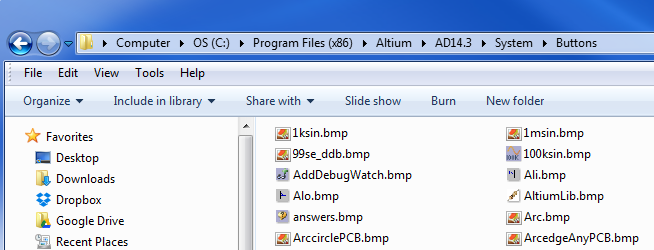
Bitmap Icons (18 x 18 pixels) can be added to the toolbar.


That's It . . .

Sunday, May 19, 2013

Altium Leaving Access Connection Open - Bug

If Altium is connected to an Access Database using a DBLib connection, when Altium is closed, Altium exits without closing the connection to the Access database.

Example:

Note this bug also applies to Access 2007 and higher *.accdb databases.

Shown below an Access Database that is closed. This is an Access back-end database 'Parts_ORW.MDB' that will be connected to Altium using *.DBLib.


Next Altium is launched and connected to 'Parts_ORW.MDB' through ORW.DBLib.


After installing 'ORW.DBLib' using your file browser, you can see a 'Parts_ORW.ldb'. This is a database lock file, which is created by Access when the database was opened and connected to by Altium.


Next close Altium without un-installing the *.DBLib Library.

Using your file browser again, you can see 'Parts_ORW.ldb'. The database lock file, which was created by Altium when the DBLib was installed is still visible. The database connection was left hanging open by Altium.

Altium should close any connections made to Access databases when.

Altium is Closed.
When the DBLib Library is un-installed.
When the DBLib Library is De-activated.

You can cleanup after Altium by opening the database and closing it after Altium has been closed.

Related links:

Microsoft CloseConnection Method for Access

"The CloseConnection method is useful when you have opened a Microsoft Access database from another application through Automation" i.e. like Altium :)

Altium Bug Crunch #3761

That's It . . . 

Saturday, May 11, 2013

Altium Designer using Repeat Blocks in Schematics - YouTube

Altium Designer using Repeat Blocks in Schematics - YouTube:

'via Blog this'

Film too Small

Found on Linkedin 


1. Mario Irigoyen 


This is most likely due to some object(s) outside of the visble workspace.
First, try changing the film size: 
Open the Gerber dialog (File-Fabrication Outputs->Gerber Files) 
Click on the Advanced tab 
The default film size is 20000mil (20 inches) x 16000mil(16 inches), make them both larger, something like 36000 x 24000.

If that doesn't work. 

Try this:

Open the PCBList panel. 

In the upper left corner click on View and change to Edit, the rest of the blue text should read 'non-masked objects' Include 'all types of objects'. 

Reset the origin (Edit-Origin>Reset) 
The workspace extents are (X)100000 x (Y)64000. 

In the List panel click the column header 'X1' to sort on that column. 
Look for objects with negative values or values larger than X100000 
Repeat for the column 'Y1', look for negative or values larger than 64000

If you find objects with negative or values greater than the extents you can enter new values in the List panel to bring the objects into the workspace or dbl-click to open the properties dialog of the object.

2. Mike Harrington CID+ 

You may have an object (usually text) much outside you visible area on the PCB. Use select Edit-Outside Area and draw a box around your legitimate PCB and texting. Then look at you "PCB List Panel" - "All Objects" and look at the X - Y dimesions for something you can see in your workspace. Or just hit delete and blow away what is outside, but I like to know what it is and modify my X-Y to bring it back in to view.

This issue is very common with Altium, also the fix when the tool crashes during the use of a variety of commands.

Status Bar - Panic

Recently I managed to get my Status Bar in the not visible mode. Most likely I pressed V followed by S on the keyboard and toggled the Status Bar off.

I use V > D often, most likely I accidentally hit the S key when I meant to select the D key.

For me the Status Bar is a must have.  I'm surprised that users are allowed to toggle it off.


To toggle the Status Bar press V, then S.

Or you can Enable the Status Bar using the View menu as shown below.