About - Vectorization.org:
What is vectorization?
Vectorization refers to the process of converting raster graphics into vector graphics. Raster images are formed from pixels. A raster images becomes pixellated when magnified. Vector graphics files store the shapes and colours that of an image as mathematical formulae. Therefore a vector graphics image is scalable to any size and detail.
How to use this service?
You don't have to register, just select the output format an upload the image. Then save the resulting file to your computer.
Does this service support color images?
No, images are converted to black and white images. If you need an online color image autotracer we recommend to use www.autotracer.org."
Source" Online Image Vectorizer
'via Blog this'
Thursday, May 7, 2015

Sunday, March 22, 2015
How to Install an Altium Script
Install the Script
If you run a script often you may want to add the script to your DXP Preferences.
DXP > Preferences > Scripting System > Global Projects > Install
Select the Script > Open > Ok
click on image to view
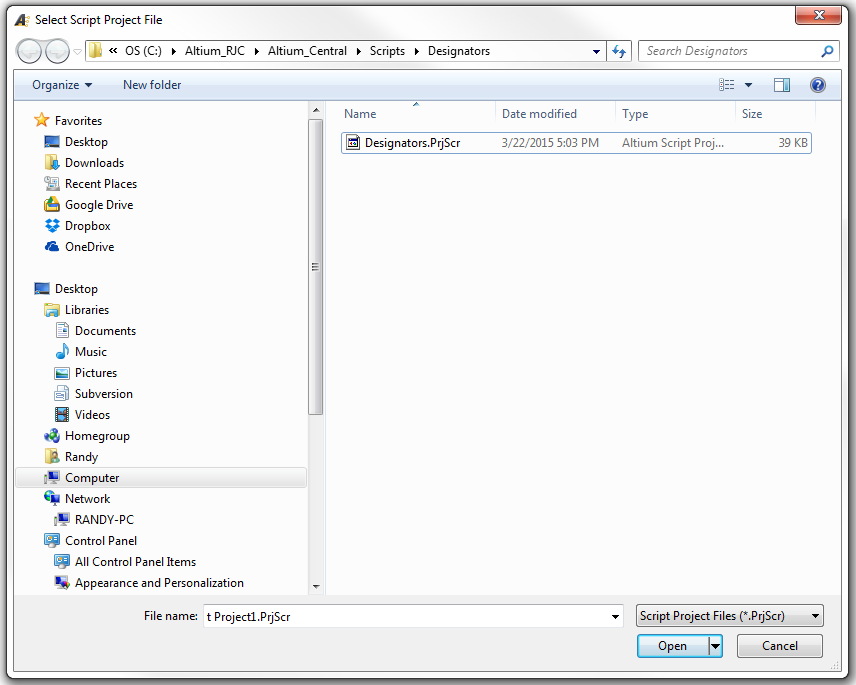
Run a PCB Script
With a *.PcbDoc open and in view, select DXP > Run Script

Select Script to Run

That's It !
If you run a script often you may want to add the script to your DXP Preferences.
DXP > Preferences > Scripting System > Global Projects > Install
Select the Script > Open > Ok
click on image to view
Run a PCB Script
With a *.PcbDoc open and in view, select DXP > Run Script
Select Script to Run
That's It !
Thursday, March 19, 2015
Wrong Page Settings - Error
Error message "Wrong page settings for . . ."
This message will appear if your Page Setup is incorrect.
click on image to view

The Outjob will display Container Links in Red if the Page Setup is incorrect.

Fixes:
In the Outjob > Right Click > Page Setup > Fix as needed

Main Menu > File > Page Setup
click on image to view

That's It !
This message will appear if your Page Setup is incorrect.
click on image to view

The Outjob will display Container Links in Red if the Page Setup is incorrect.

Fixes:
In the Outjob > Right Click > Page Setup > Fix as needed
Main Menu > File > Page Setup
click on image to view
That's It !
Sunday, March 1, 2015
Friday, February 27, 2015
AD14.3 - Enhanced Polygon Editing and Management
Enhanced Polygon Editing and Management | Online Documentation for Altium Products:
"Hold Ctrl to delete or add a vertex (click and hold briefly until there is a response)."

Press Shift+Spacebar to cycle through the 3 editing styles, then use the green guidelines to help accurately place the vertex. The current mode is displayed in the Heads Up Display, and also on the Status bar.

via Blog this'
"Hold Ctrl to delete or add a vertex (click and hold briefly until there is a response)."
Press Shift+Spacebar to cycle through the 3 editing styles, then use the green guidelines to help accurately place the vertex. The current mode is displayed in the Heads Up Display, and also on the Status bar.
via Blog this'
Subscribe to:
Posts (Atom)